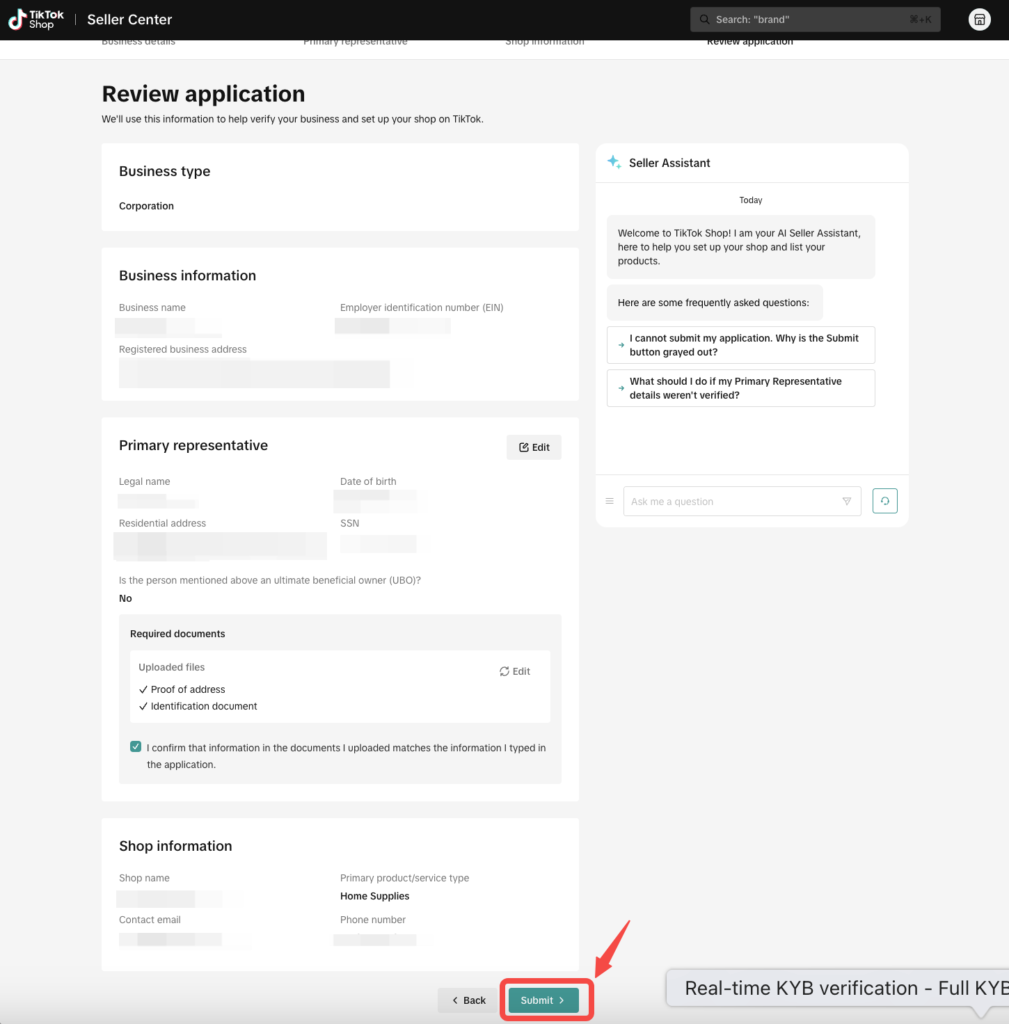
Onboarding – Verification
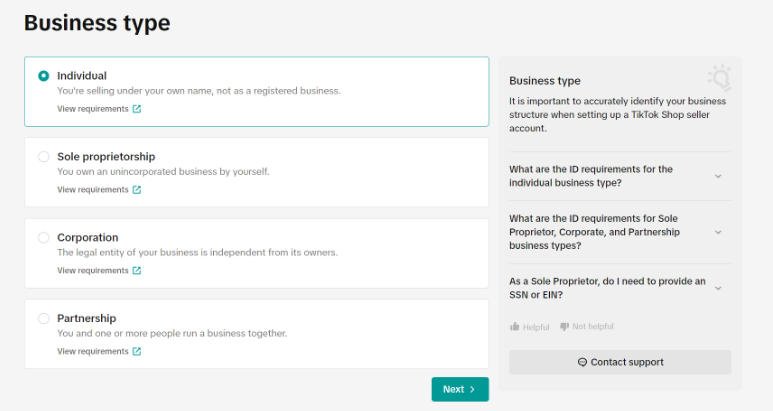
First, choose “Sole Proprietorship” as your business type:
Definition of Sole Proprietorship: You own an unincorporated business by yourself
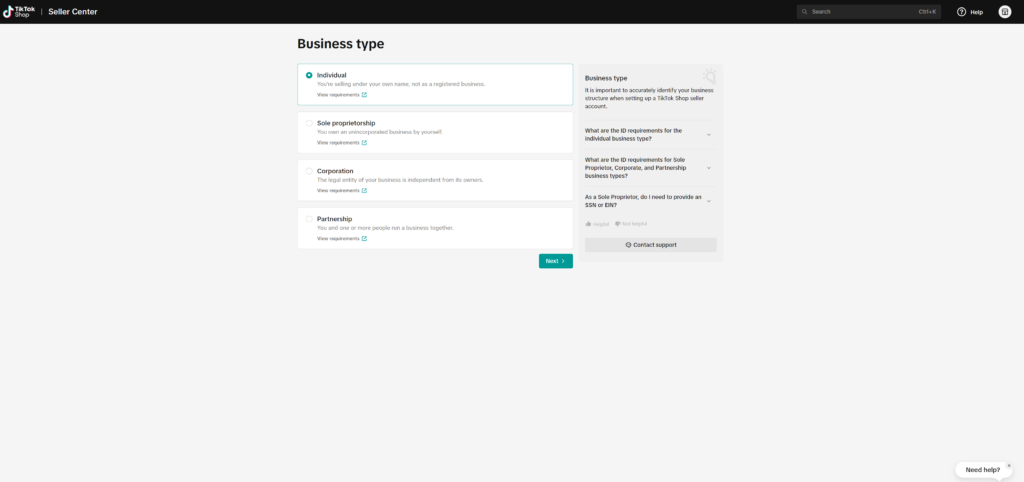
After the business type is chosen, you must provide a few essential documents before finalizing the onboarding process.
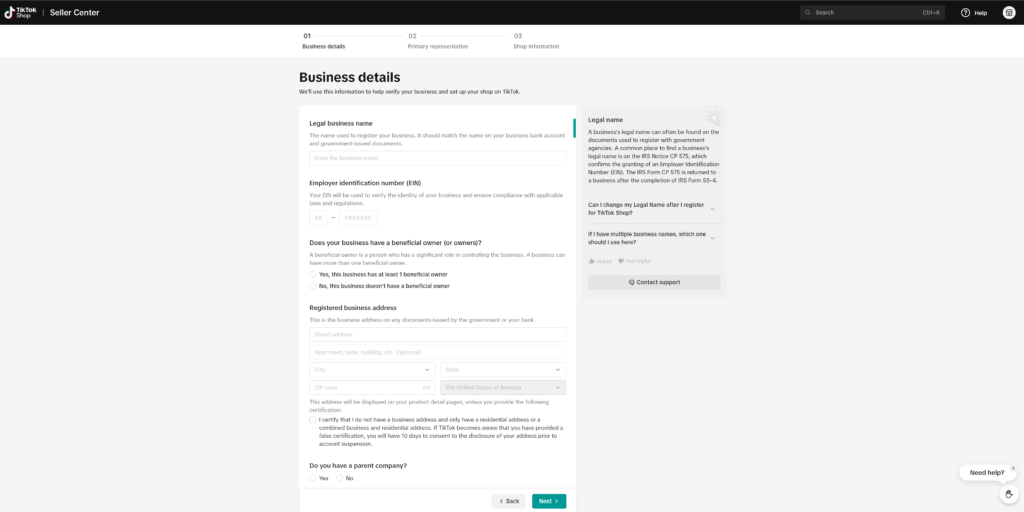
Fill In Your Business Information
- Legal business name
- Employer identification number (EIN) (if applicable)
- Note: Are you a sole proprietor without an EIN? If so, please select Individual Seller during registration. Sole proprietors without an EIN must use their personal information, which falls under the “Individual Seller” category.
- Registered business address
Provide Account Owners Information
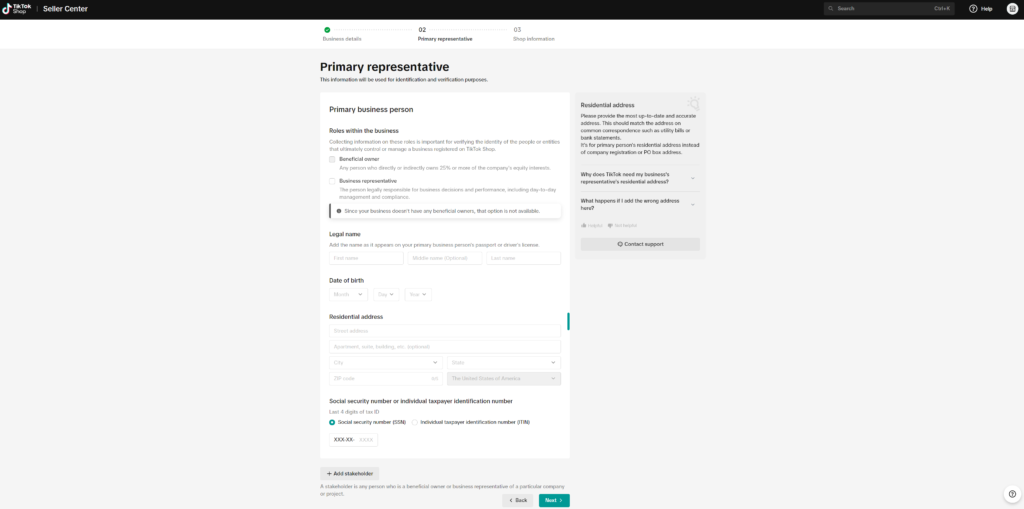
Individual who wants to conduct business on TikTok Shop must have their account owner’s (business representative’s) information verified.
- For business entities, basic information and the last 4 digits of SSN or ITIN is required
Note: Please make sure the information you provide is exactly the same as on your ID
According to US regulations, all sellers must display their business address to consumers on the Product Detail Page.
- If the address entered is your residential address, please select the ‘Certify’ checkbox on the page. With this, the platform will only display partial addresses.

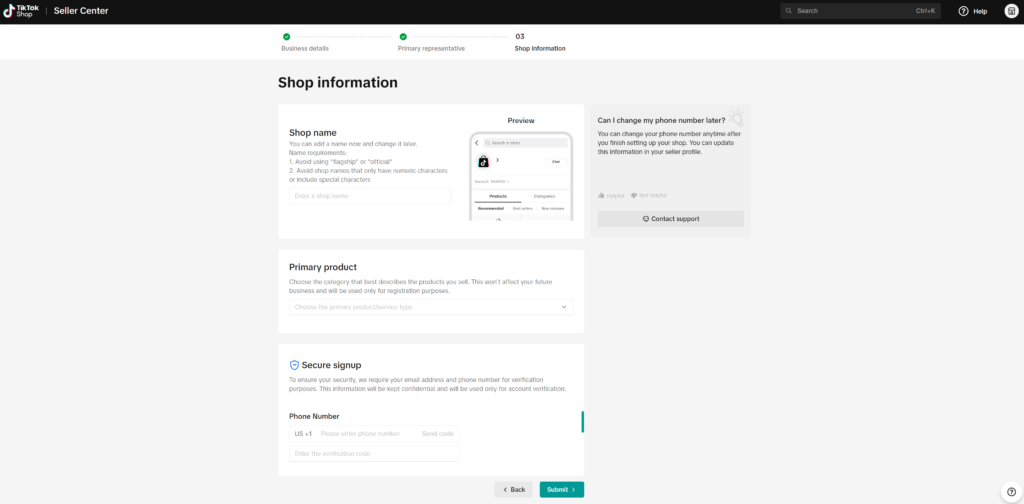
How to Set Up Shop Preference
- Create a shop name, which will be displayed to consumers. Tips for creating a shop name are:
- Choose a creative shop name that will allow consumers to recognise your business.
- Draw inspiration from branding, products, and anything that reflects your individual style.
- Use letters (a-z, A-Z), numbers and special characters, but you cannot have only numbers or special characters as the shop name.
- Avoid nonsensical shop names
- Do not use “flagship” or “official” in the name.
- Change your shop name later if necessary.
- Choose a creative shop name that will allow consumers to recognise your business.
- Select a primary product/service type.
- Choose the category that best describes the products and services you provide. This will not affect your future business activities and will only be used for completing the registration process.
- Add contact information for verification purposes
Submitting your seller information
While on the Review Application page, if your proof of address information/documentation needs to be edited, select the ‘upload documents’ link.
Under the ‘Primary Representative‘ section, you’ll see a green checkmark next to the details that are verified and ready to submit. If there’s an issue and the information couldn’t be verified, a yellow caution symbol will appear, letting you know that you need to review and fix it or provide required documentation, before submitting.
If you encounter the yellow caution symbol, you will need to review and adjust the information or documentation. In order to submit, you must have all four fields (Legal name, Date of birth, Residential address, and SSN) verified or provide the required documents.
- Legal name and Date of birth must match the ID you are using to sign up.
- Residential address must match what is on the proof of address documentation.
- See Learn How to Boost Sales | TikTok Shop Academy | United States for guidance on which documents are accepted.
- SSN must be the one legally assigned to the Primary Representative.
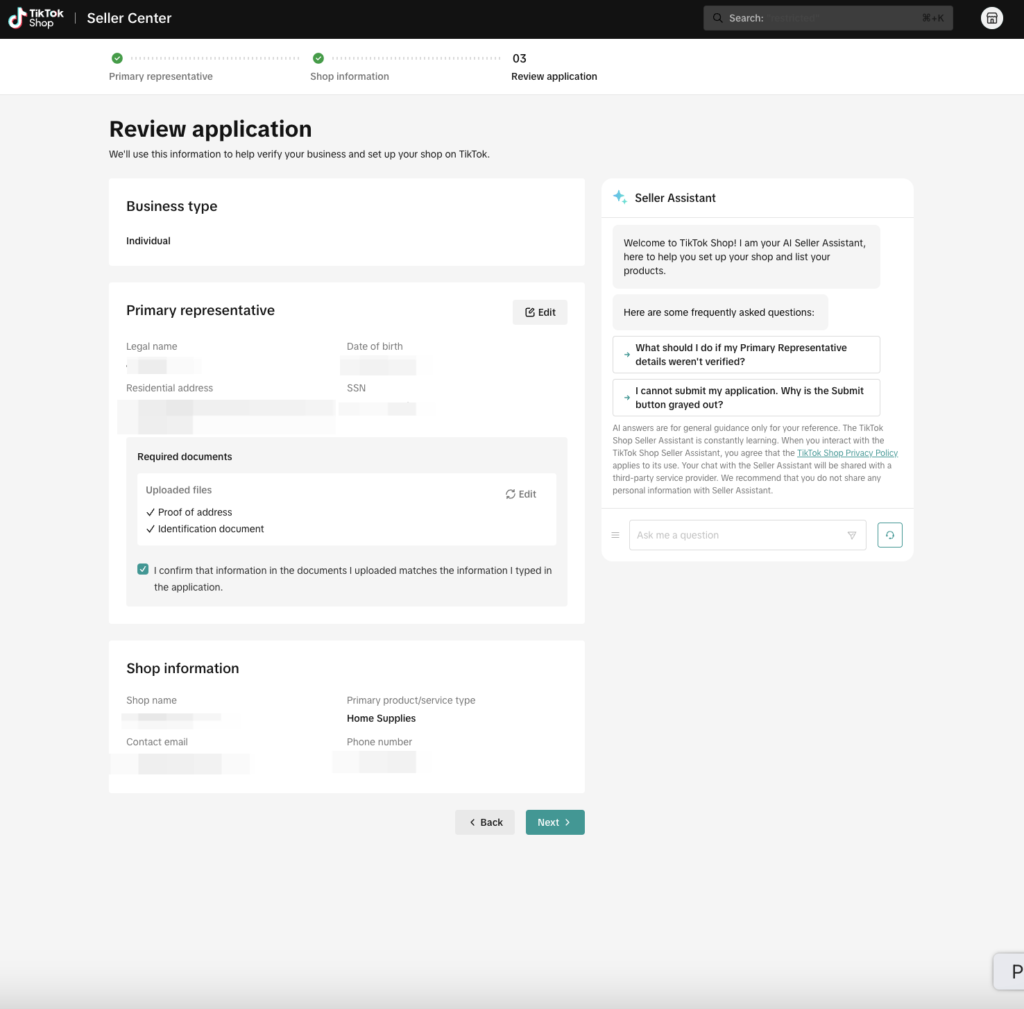
If any fields are not able to be verified, we recommend editing Primary representative information.
Use the sections below for guidance on editing your information and/or uploading documents.
Editing your seller information
If your information needs to be edited, click the ‘edit your information‘ link or use the ‘Edit‘ button located in the top right corner on the Review Application Page.
You will then need to fill out the information to ensure it meets the requirements in the section above.
Remember:
- The Legal name and Date of birth must match with the ID that you used to sign up.
- The Residential address must match what is on your ‘Proof of address’ documents.
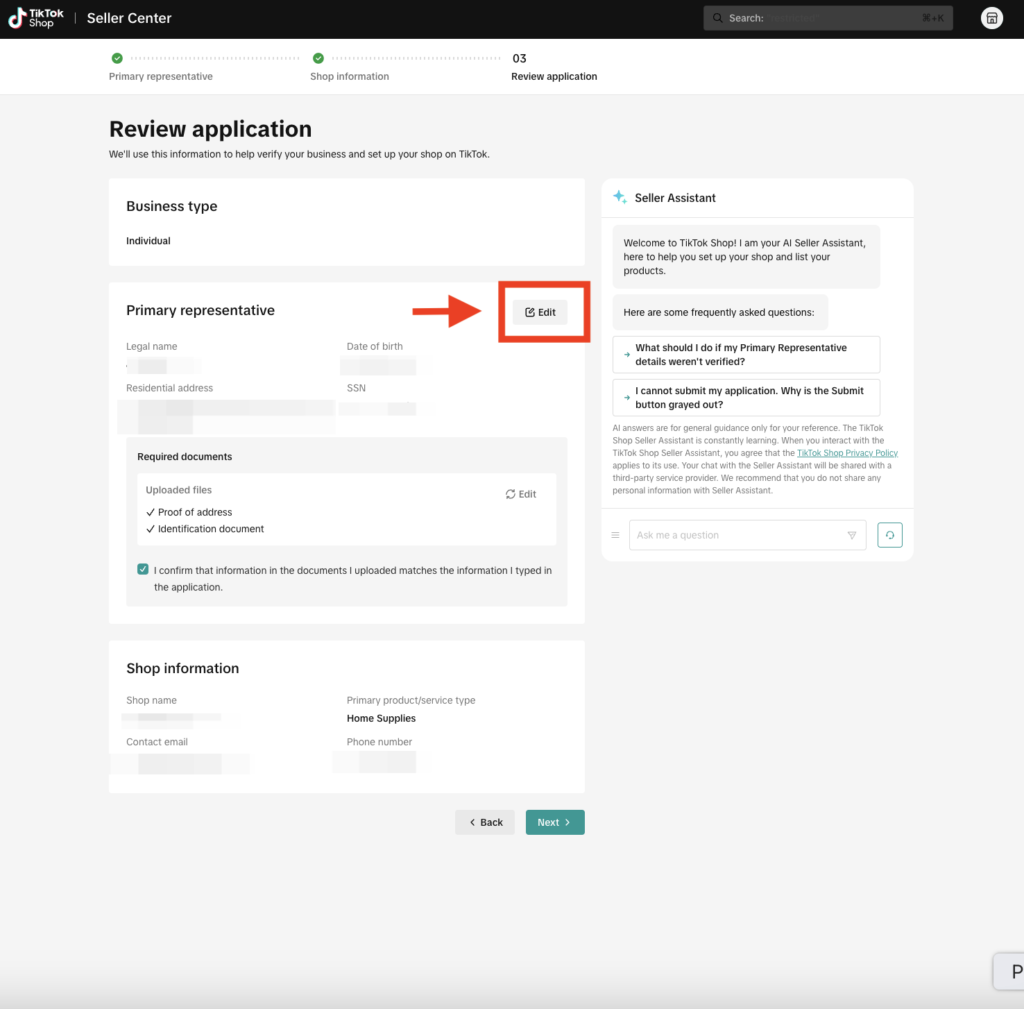
Uploading your proof of address documents
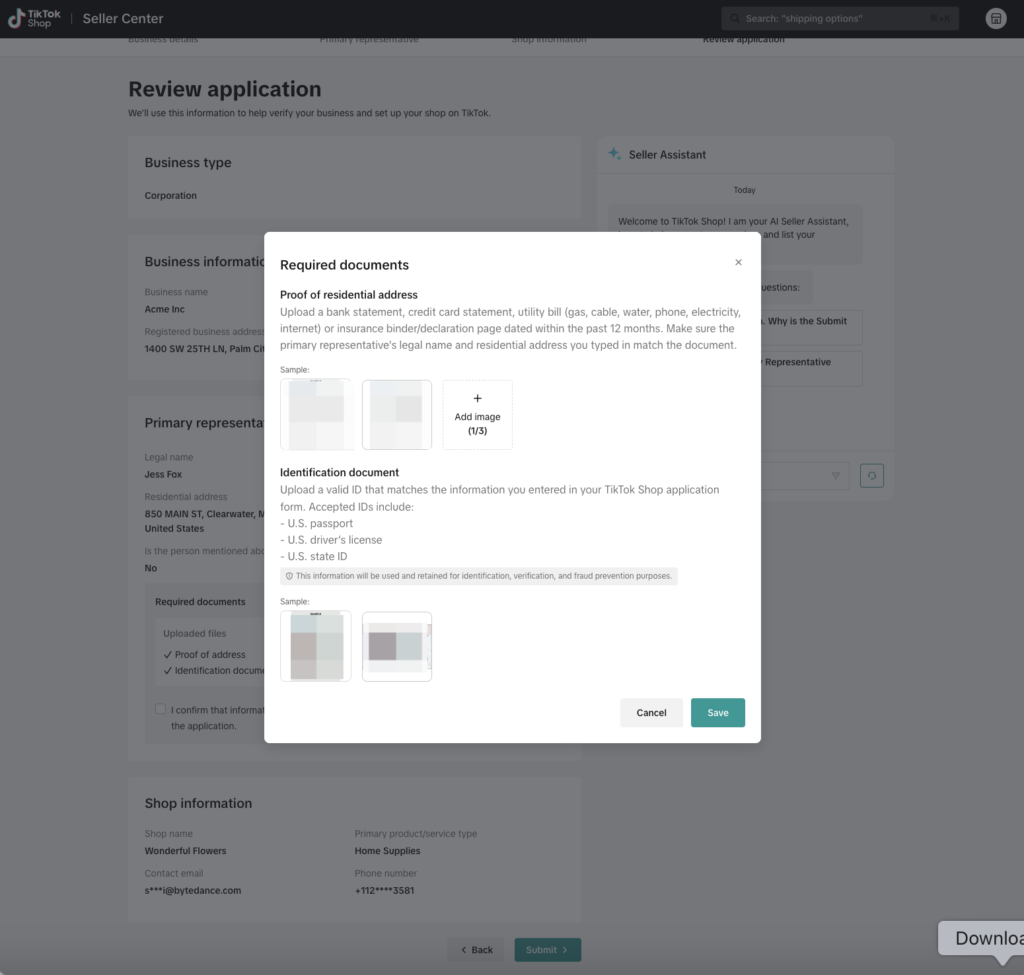
While in the Review Application page, if your proof of address information/documentation needs to be edited, select the ‘upload documents‘ link. Next, you will be prompted to upload a document for our specialists to review. Follow the guidelines below to submit document uploads.
Under the ‘Upload documents section‘, you may be prompted to submit a Proof of address and/or ID verification submission. Upload your documentation using the ‘Upload file‘ option under the corresponding section (see image below).
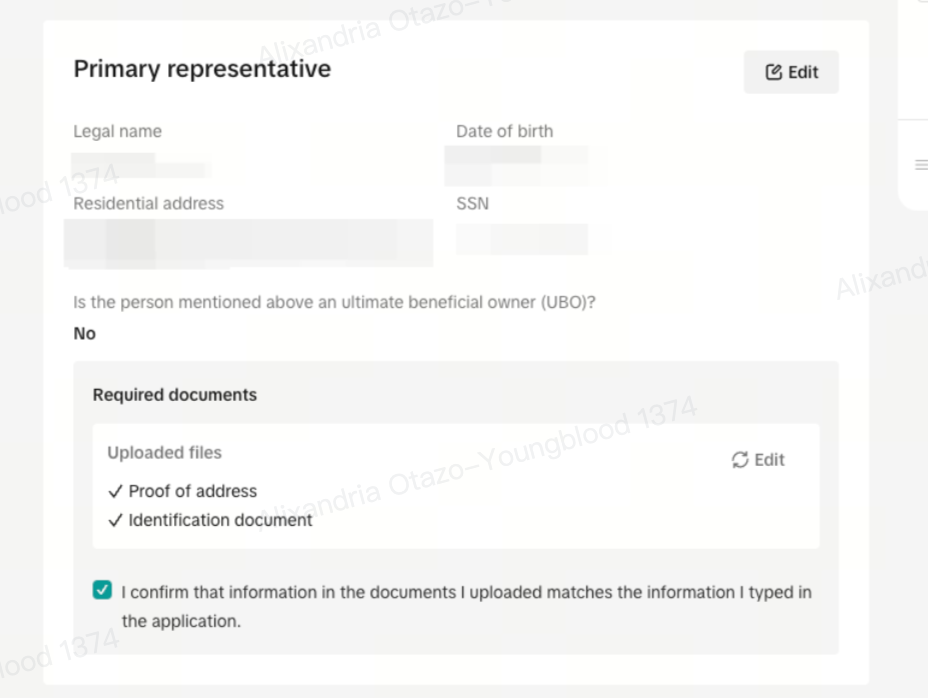
Once uploaded, ensure you check the box signifying that the documents that were uploaded match the information entered in the Primary representative section (see image below).
- If the information on the documents provided does not match the information in the form, go back and update the Primary representative section to make sure everything matches correctly before submitting.
- Click the ‘confirmation’ below when done.
Final Submission
If all information and documentation is verified, or if you provided required documentation, you will see the green checkmarks next to all areas. Additionally, a ‘Information verified‘ banner will appear at the bottom of the Primary representative section (see image below).
When done and all information has been verified, select the ‘Submit’ button on the bottom right of the page.